

Track Postpaid SIM Live Usage with Webhooks
Get the data usage of your postpaid SIMs in near real time through a webhook, monitor each event, and check the live usage of a SIM.
Use this recipe to get the data usage of your postpaid SIMs in near real time. With this data, your systems can notify a customer, throttle a SIM or suspend a SIM before the SIM uses more data than its allowance.
When the usage of your SIMs changes, Peplink sends a POSTPAID_SIM_USAGE_UPDATED event to your endpoint. The
event gives the usage of each changed SIM from the start of the month. Keep the latest value for each SIM. You do not
have to request the usage again and again.
Note
Live usage is an estimate for monitoring. Your invoice uses the monthly usages. At the end of each month, compare your values with the monthly usages.
Prerequisite
Recipe: Prepare Your Endpoint
Your endpoint receives each event as a POST request. The request body is JSON, as in this example:
{
  "eventId": "66fd0c1e8a1b2c3d4e5f6a7b",
  "eventType": "POSTPAID_SIM_USAGE_UPDATED",
  "createdAt": "2026-10-02T01:20:00.000Z",
  "data": {
    "items": [
      {
        "iccid": "89000000000000000000",
        "year": 2026,
        "month": 10,
        "usageMb": 886.94,
        "lastEventAt": "2026-10-02T01:18:41.000Z"
      }
    ]
  },
  "test": false
}
Make sure that your endpoint does these tasks:
- It uses
httpsand a public internet address. Peplink does not follow redirects. - It accepts a request only when the
Authorizationheader isBearer <token>.<token>is the token of the webhook. - It sends a
2xxresponse in 10 seconds or less. - It ignores an event when it processed the same
eventIdbefore. A retried event has the sameeventId. - For each
iccid,yearandmonth, it keeps only the item with the latestlastEventAt. Events can arrive in a different order. - It ignores an event when
testistrue. A test event contains sample data.
For a description of each field, see Webhooks Overview.
Recipe: Set Up a Webhook via Portal UI
Step 1: Grant Webhook Capabilities
Go to Members in the portal.
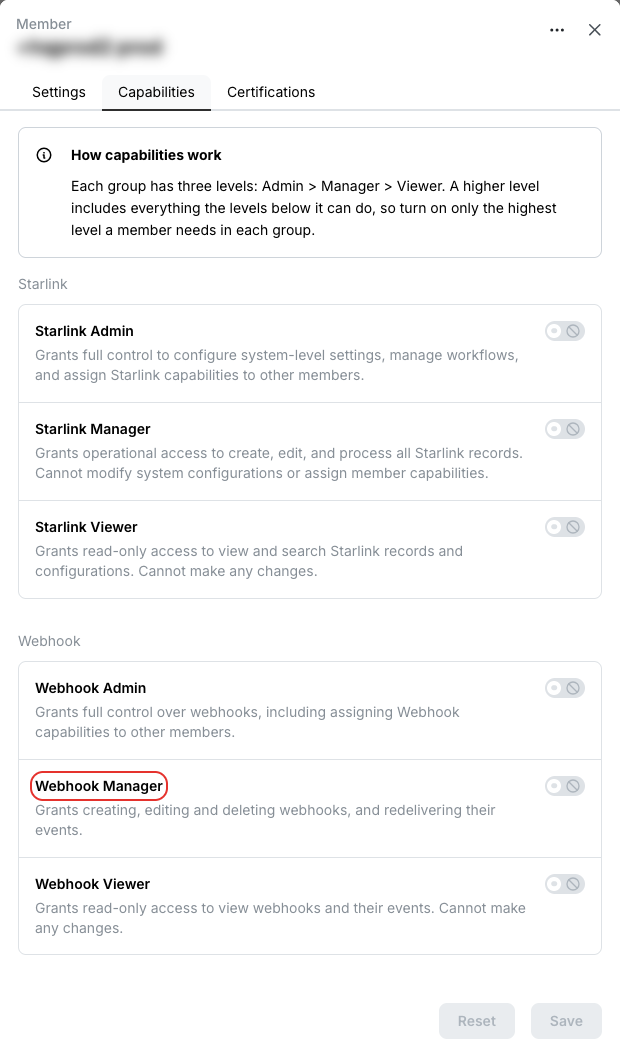
Turn on the capability that the member needs.
| Capability | Permissions |
|---|---|
| Webhook Viewer | View webhooks and their events. |
| Webhook Manager | Create, edit, test and delete webhooks. Redeliver events. |
| Webhook Admin | All Webhook Manager permissions. Grant Webhook capabilities to members. |
Click Save.
If your systems use the webhook APIs, give the API key the same capability.
Step 2: Create the Webhook
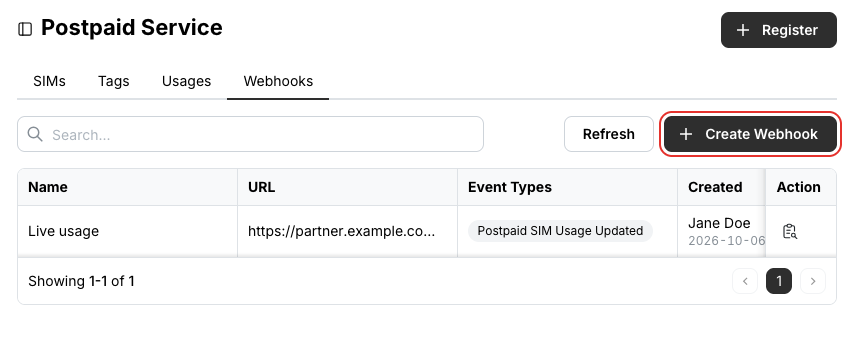
Go to Postpaid Service > Webhooks in the portal.
Click Create Webhook.
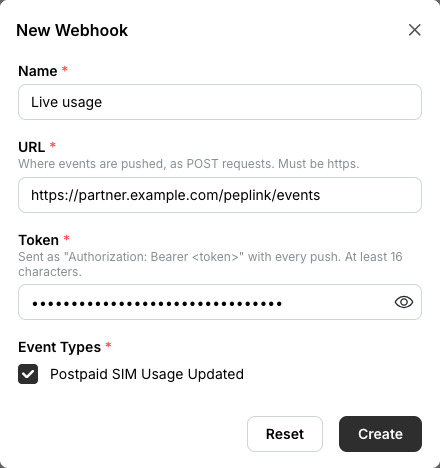
Enter the values:
- Name: a name for the webhook.
- URL: the URL of your endpoint.
- Token: a secret of 16 or more characters. Peplink sends it in the
Authorizationheader of each request. - Event Types: select Postpaid SIM Usage Updated.
Click Create.
Peplink starts to send events when you create the webhook. Your account can have a maximum of 10 webhooks.
To use the API, see create a webhook.
Step 3: Test the Webhook
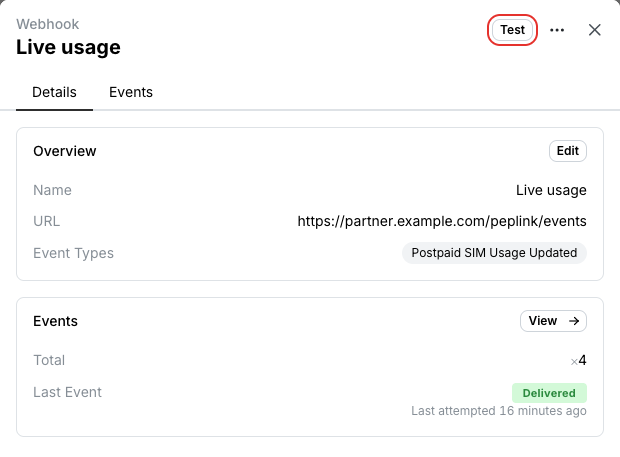
Open the webhook.
Click Test.
Click Send Test.
The portal sends one event with sample data to your endpoint. In this event, test is true. The portal shows
the Request Sent and the Response Received. If your endpoint does not respond, the portal shows the
error.
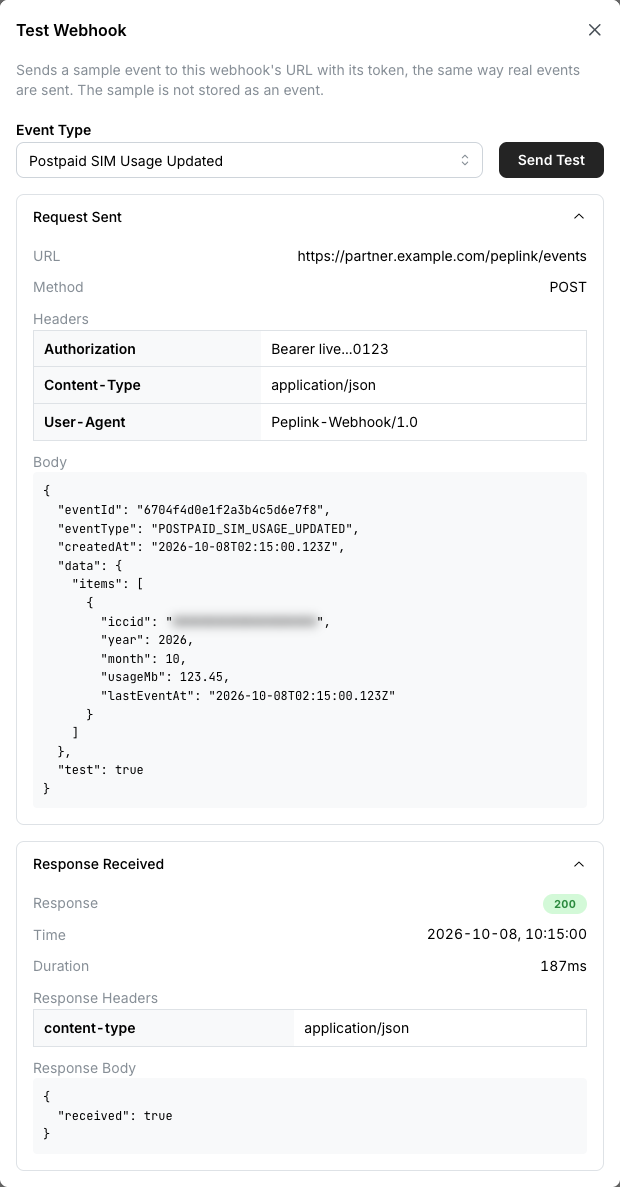
To use the API, see send a test push.
Step 4: Monitor the Events
The Details tab of the webhook shows a summary of its events. The Events tab shows each event with its status and last attempt. You can filter the events by status.
Click the Events tab.
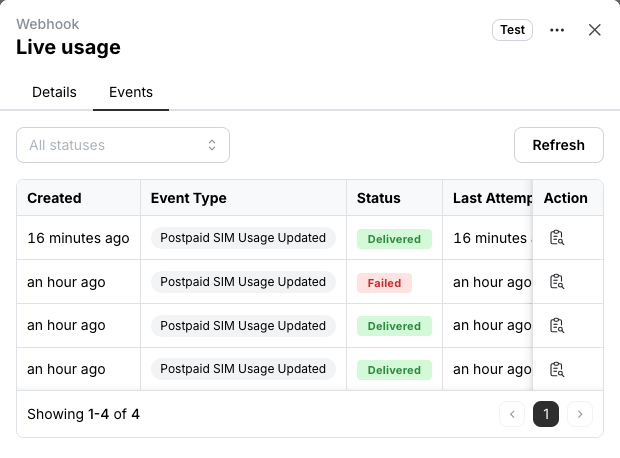
Open an event.
The event shows the data that Peplink sent and each attempt. Each attempt shows the response status, headers and body from your endpoint, or the error.
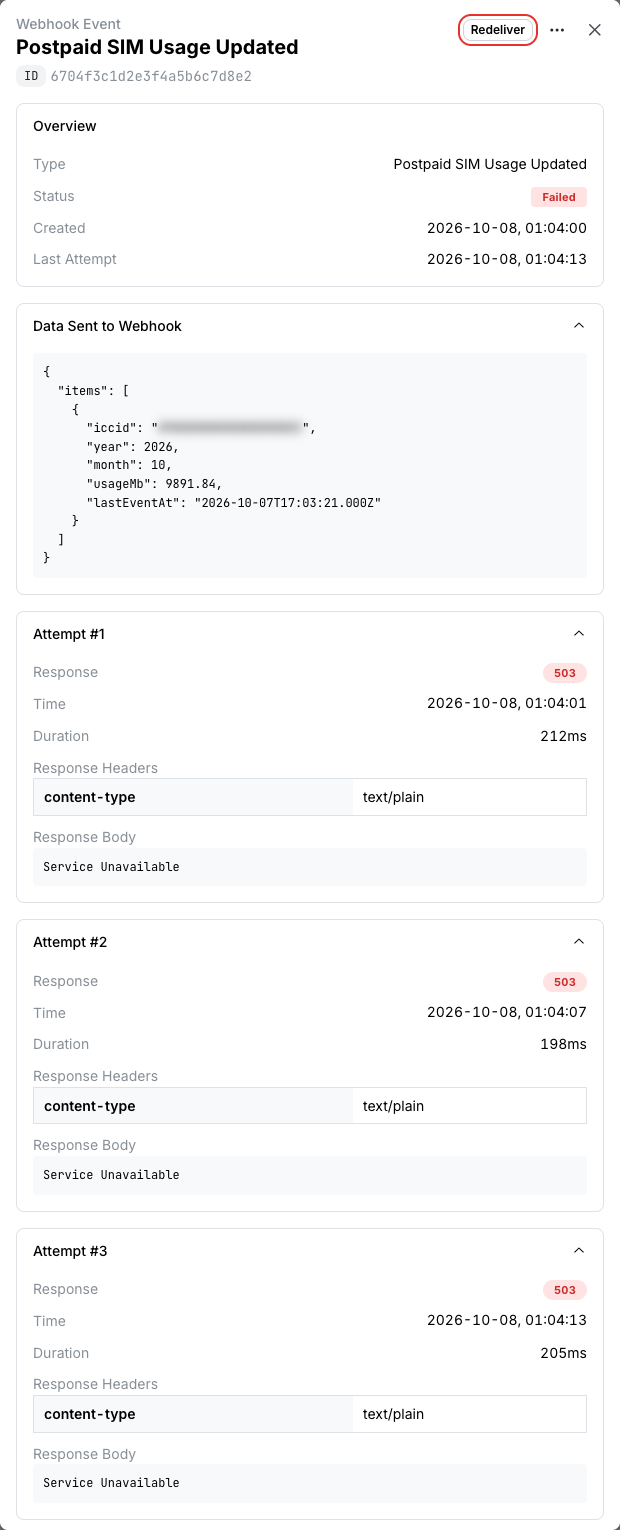
If a request fails, Peplink sends it again, with a maximum of 3 attempts. After 3 failed attempts, the status of the event changes to Failed. To send a failed event again, open the event and click Redeliver. To recover many events, see Recover Missed Events.
To use the API, see search events, retrieve an event and redeliver an event.
Recipe: Recover Missed Events
Use this procedure when your endpoint did not receive events, for example during an outage. Peplink keeps each event and the data that it sent. Your systems read the events with the API. Peplink does not send the events again, and your endpoint does not have to be available.
You need an API key with the Webhook Viewer capability.
Warning
When you delete a webhook, you also delete its events. Recover the events before you delete a webhook.
Find the start time of the outage. Write the time in UTC, for example 2026-10-07T17:00:00Z.
Search the events of the webhook. Use the search events API. Set
createdAtRange to the start time, followed by a comma:
GET /webhooks/{id}/events/search?pageNum=1&pageSize=100&createdAtRange=2026-10-07T17:00:00Z,The API returns the newest events first. Increase pageNum until you have all totalCount events.
To get only the events that failed, add status=FAILED. Do not add this filter if your endpoint sent a 2xx
response but did not process the events. These events have the status DELIVERED.
Process each event as a received event. The data field contains the data that Peplink sent, as a JSON
string:
{
  "id": "6704f3c1d2e3f4a5b6c7d8e2",
  "eventType": "POSTPAID_SIM_USAGE_UPDATED",
  "data": "{\"items\":[{\"iccid\":\"89000000000000000003\",\"year\":2026,\"month\":10,\"usageMb\":9891.84,\"lastEventAt\":\"2026-10-07T17:03:21.000Z\"}]}",
  "status": "FAILED",
  "createdAt": "2026-10-07T17:04:00.000Z"
}
The id of the event is the same as the eventId of the request. Ignore the events that you processed before.
To send a small number of events again, use Redeliver in the portal. See Step 4: Monitor the Events. To use the API, see redeliver an event.
Recipe: Check SIM Live Usage via Portal UI
Go to Postpaid Service > SIMs in the portal.
Click the Postpaid Usages tab.
Live Usage shows the usage of the latest month and the time of the last report. Monthly Usages shows the billed usage.
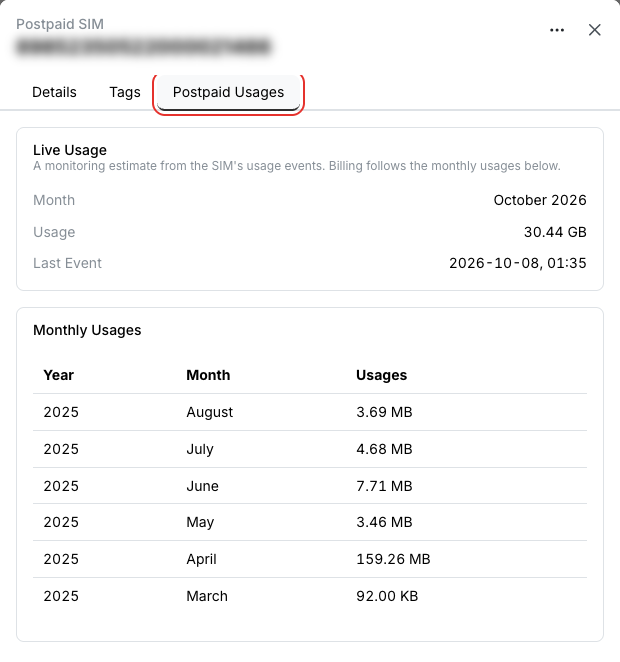
Use this tab to check the usage of one SIM, for example when a customer asks about it. To use the API, see get live usage of a SIM.