

Activate Starlink service line via API
Create a Starlink account, address and service line request through the Partner API to activate a new service line.
You will learn how to activate a new Starlink service line via API.
Tip
You can inspect the web UI of Peplink Portal to check how to use API for different actions. The network tab in browser dev tool is your friend!
Prerequisite
You need to have the following information ready before activating a new Starlink service line:
| Field | Description |
|---|---|
| starlinkAccountRefId | ID of the Starlink account to which the service line will be added. You can find from the ID badge in the Starlink account details modal. |
| starlinkDeviceRefId | Starlink KIT number of the device to be assigned to the service line. We will cover how to add a Starlink kit to the account and retrieve this ID in the recipe below. |
| starlinkAddressRefId | ID of the service address for the service line. We will cover how to add a service address to the account and retrieve this ID in the recipe below. |
Make sure the Starlink account is ready
The Starlink account needs to have signed the LOA and be active.
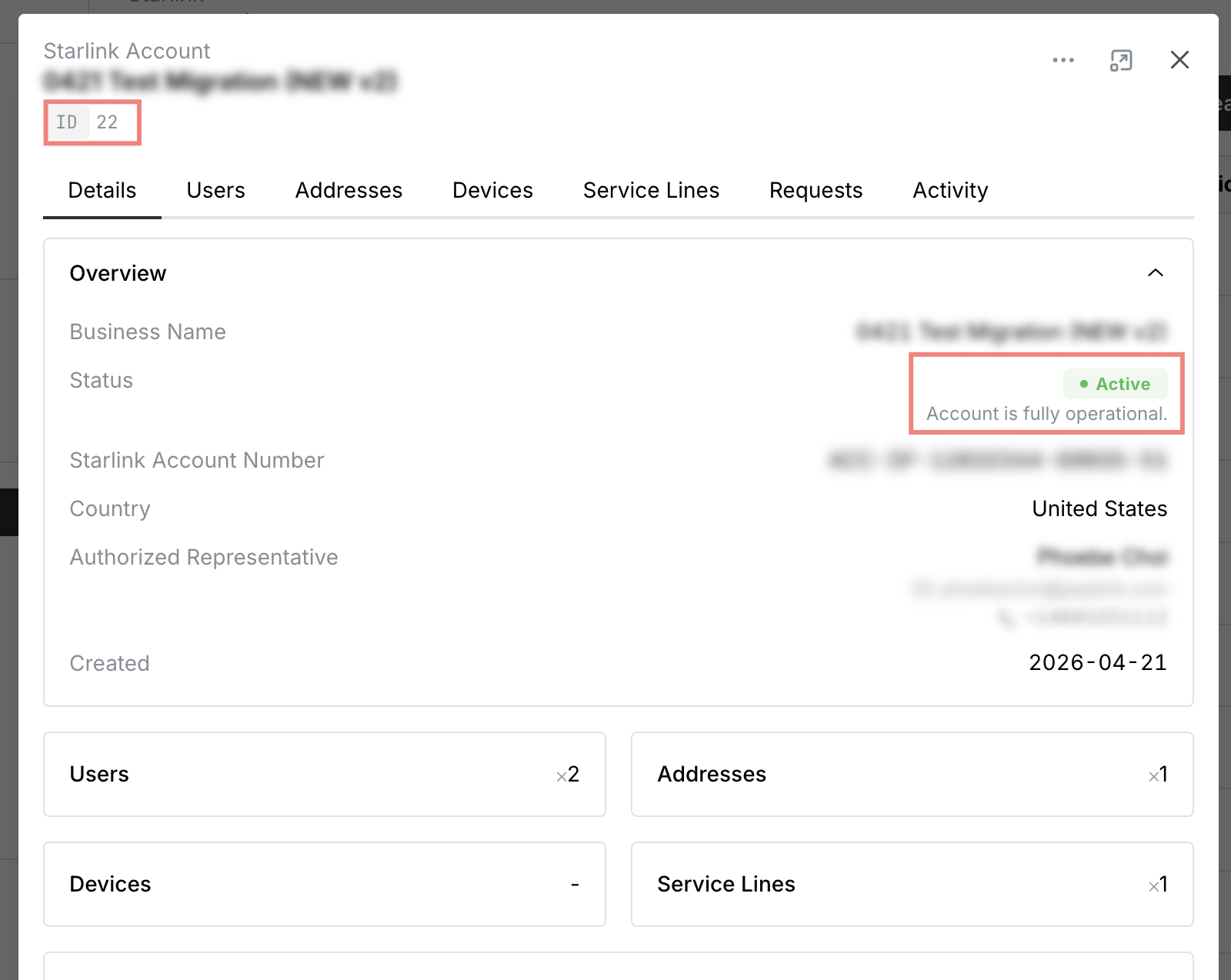
Recipe
Add the Starlink kit to the Starlink account using the create Starlink device API.
{
  "starlinkKitSerialNumber": "XXXX00000001",
  "starlinkAccountRefId": "92"
}
Note the refId from the response — this is the starlinkDeviceRefId needed in a later step.
Add an address to the Starlink account.
-
Search for a place using the suggest a place API:
GET /starlink/places/suggest?starlinkAccountRefId=92&sessionToken={session-token}&query=Westminster[ { "placeId": "ChIJQ9b_zXquEmsRY6cF2rm2v0M" // other details... } ]Note the
placeIdfrom the desired result in the response. -
Create the address in the Starlink account using the create Starlink address API:
{
  "starlinkAccountRefId": "92",
  "placeId": "..." // from the place suggestion/details APIs
}
Note the
refIdfrom the response — this is thestarlinkAddressRefIdneeded in the next step.
Find the SKUs for the service line plan using the search products API.
Call the API to find available Starlink service line SKUs for your country:
GET /products/search?pageNum=1&pageSize=100&catalog=STARLINK&starlinkCountryCode=US&starlinkProductTypes=TERMINAL_ACCESS_CHARGE,DATAFor each service line, you need exactly two types of SKUs from the same starlinkServiceLineType (LOCAL or GLOBAL):
- Terminal Access Charge (TAC) — a product with
starlinkProductType: TERMINAL_ACCESS_CHARGE. Must usequantity: 1. - Data — a product with
starlinkProductType: DATA. Usequantity≥ 1 (each unit adds one data block to the service line).
Below are examples of valid items for each service line type. Replace the example SKUs with the actual SKUs returned from the product search.
Local Priority (starlinkServiceLineType: LOCAL):
[
  { "sku": "SLK-LP-TAC-US", "quantity": 1 },
  { "sku": "SLK-LP-50GB-DB-US", "quantity": 2 }
]
Global Priority (starlinkServiceLineType: GLOBAL):
[
  { "sku": "SLK-GP-TAC-US", "quantity": 1 },
  { "sku": "SLK-GP-50GB-DB-US", "quantity": 2 }
]
Note
The TAC and data SKUs must share the same starlinkServiceLineType. Mixing LOCAL and GLOBAL SKUs in the same request is not valid.
Create a Starlink request to activate the new service line using the create Starlink request API.
Set type to SERVICE_LINE_CREATE, and provide createServiceLineDetail and items.
To activate immediately, set starlinkDeviceRefIds to the device refId noted in step 1:
{
  "starlinkAccountRefId": "92",
  "type": "SERVICE_LINE_CREATE",
  "createServiceLineDetail": {
    "name": "My Service Line",
    "starlinkAddressRefId": "ADDR-00001",
    "starlinkDeviceRefIds": ["XXXX00000001"]
  },
  "items": [
    { "sku": "SLK-GP-TAC-US", "quantity": 1 },
    { "sku": "SLK-GP-50GB-DB-US", "quantity": 2 }
  ]
}
Note
- For
LOCALservice line, a maximum of 1 device can be assigned. - For
GLOBALservice line, a maximum of 2 devices can be assigned.
To activate later, when you don't have the Starlink kit yet, omit starlinkDeviceRefIds and set pendingActivation to true:
{
  // other fields as above
  "createServiceLineDetail": {
    "name": "My Service Line",
    "starlinkAddressRefId": "ADDR-00001",
    "pendingActivation": true
  }
}
The service line stays in the Pending Activation state until you assign the kit using the update Starlink service line API.
Note the refId from the response — this is the Starlink request reference ID.
Check the request status by polling the retrieve Starlink request API until status is COMPLETED:
GET /starlink/requests/{refId}Once completed, check createServiceLineDetail.starlinkServiceLineRefId in the response for the new service line reference ID:
{
  "createServiceLineDetail": {
    "name": "My Service Line",
    "starlinkAddressRefId": "ADDR-00001",
    "starlinkServiceLineRefId": "SL-00001",
    "pendingActivation": false,
    "starlinkDeviceRefIds": ["XXXX00000001"]
  }
}
Waiting too long for the status to change to COMPLETED?
Contact your VAD to approve the request if needed. Once approved, the status should change to COMPLETED in a few minutes.
Retrieve the new service line using the retrieve Starlink service line API to confirm the service line details.
GET /starlink/service-lines/{starlinkServiceLineRefId}Check the starlinkServiceLineNumber field in the response to confirm Starlink has created the Starlink service line in Starlink Dashboard.