

Members
Add colleagues to your account, disable access when they leave, and check their Peplink certifications.
The Members section allows organization administrators to manage employee portal access, assign granular capability permissions, and review technical certifications.
Add a member
If your company already has a portal account and wishes to give another member of the team access, create a member for them. Each member signs in with their own Peplink ID.
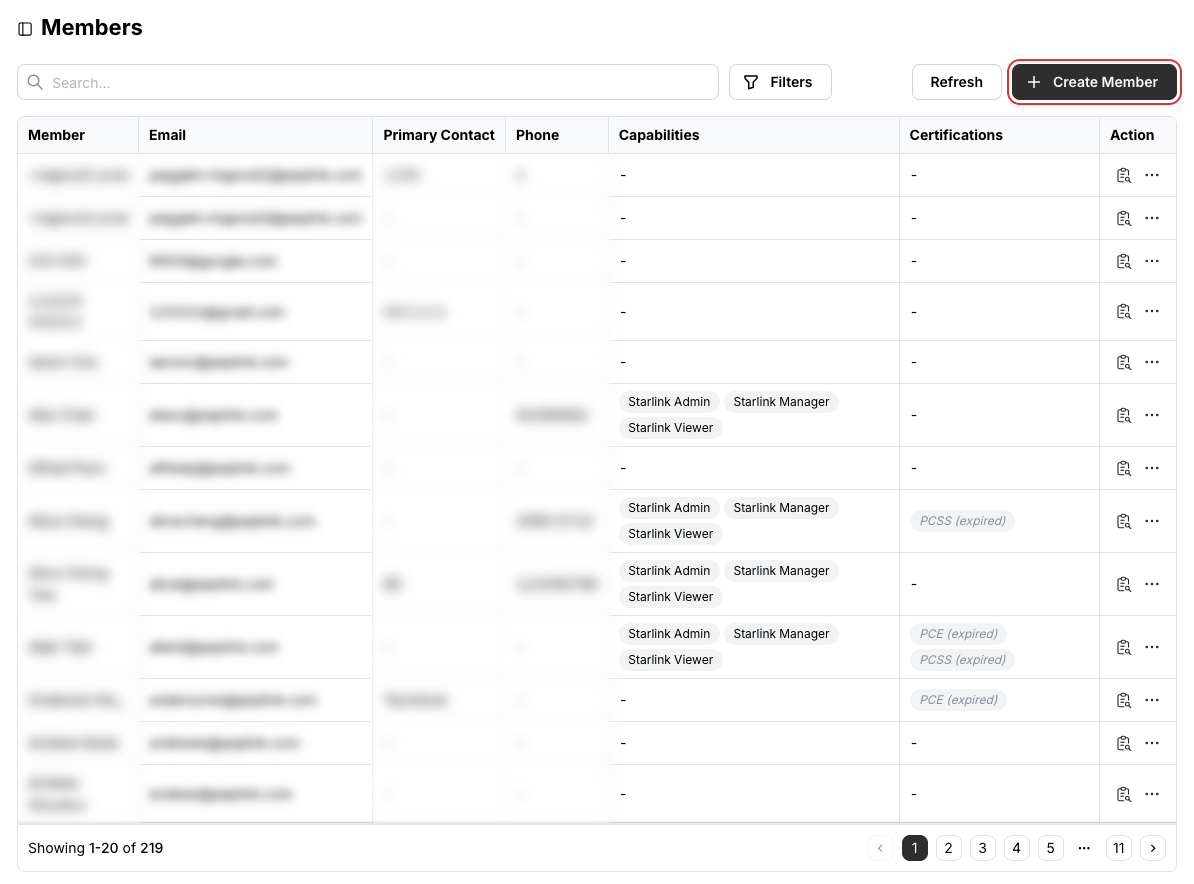
Click Create Member at the top right of the list.
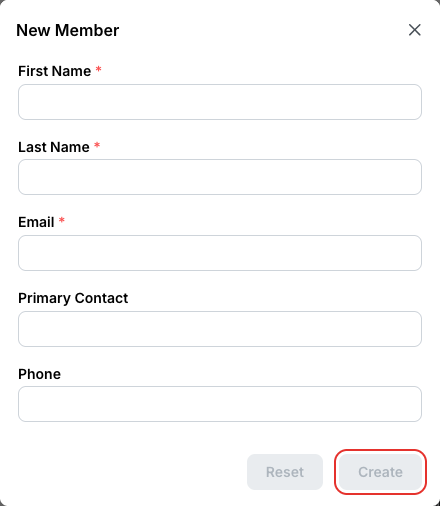
Enter the member's first name, last name and email address. The email address must be the one they use as their Peplink ID. Primary contact and phone are optional.
Disable a member
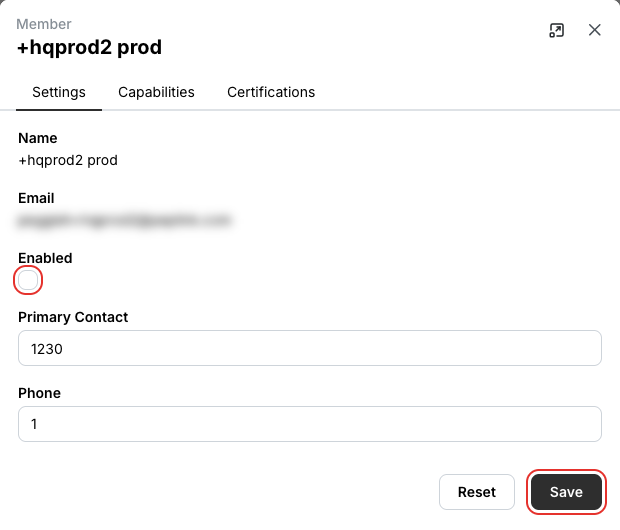
A member's profile cannot be deleted; it stays on the account for its history. To remove someone's access, disable the member instead. Enable them again the same way.
On the Settings tab, clear Enabled and click Save.
Grant Starlink capabilities
Enabled for selected partners
The Capabilities tab is available exclusively to approved Starlink Authorized Solution Providers (ASPs).
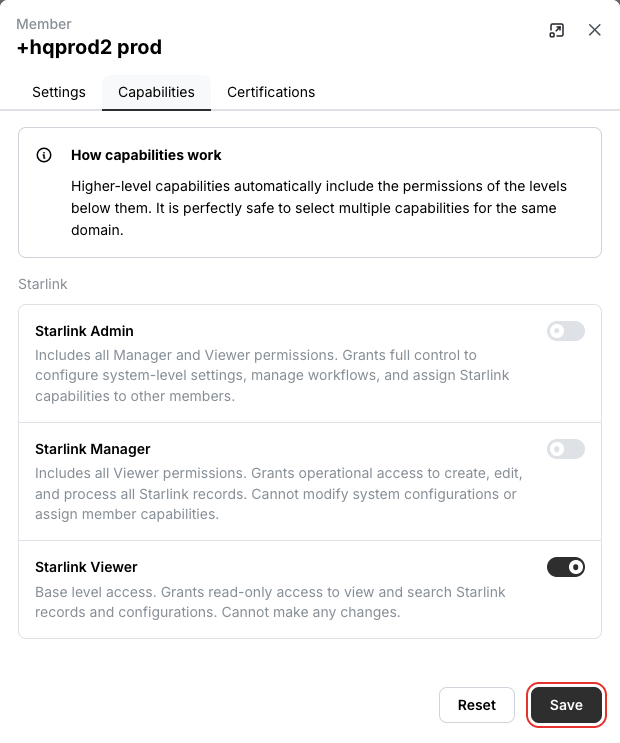
Capabilities grant a member one of three levels of access to the Starlink sections. Higher levels automatically include the permissions of the levels below them.
Turn on the level the member needs — Starlink Viewer, Starlink Manager or Starlink Admin — and click Save.
Check certifications
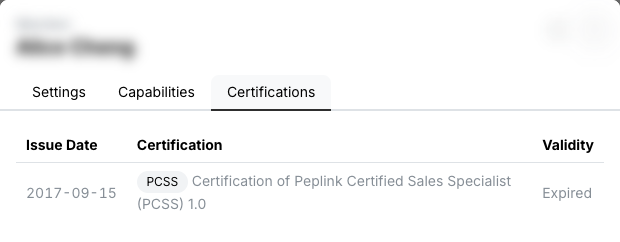
The Certifications tab shows the member's current and past Peplink certifications with their issue dates and remaining validity. Nothing can be edited here.
- To get certified, the member signs in to the Training Portal with their Peplink ID and chooses a programme.
- To correct the name or email address on a certificate, email [email protected].