

Update PO information for an order
Set the customer PO number and upload PO files for an existing order, via the Partner API or in the portal.
You will learn how to update PO information for an order.
Prerequisite
It is assumed you are already familiar with the API integration setup.
Recipe: Update customer PO number via API
Submit the update customer PO number API with a new customerPoNumber.
Verify if the update is successful:
- check the update API response code
200 - (optional) check the result of retrieve order API
- (optional) go to the Portal > Order History > Search order > Check details
Recipe: Create customer PO file via API
Submit the create customer PO file API.
Verify if the create is successful:
- check the create API response code
200 - (optional) check the result of list order customer PO files API
- (optional) go to the Portal > Order History > Search order > Check details > tab > PO Files
Recipe: Create customer PO file via Portal UI
Go to the Portal > Order History > Search order > Check details > tab > PO Files
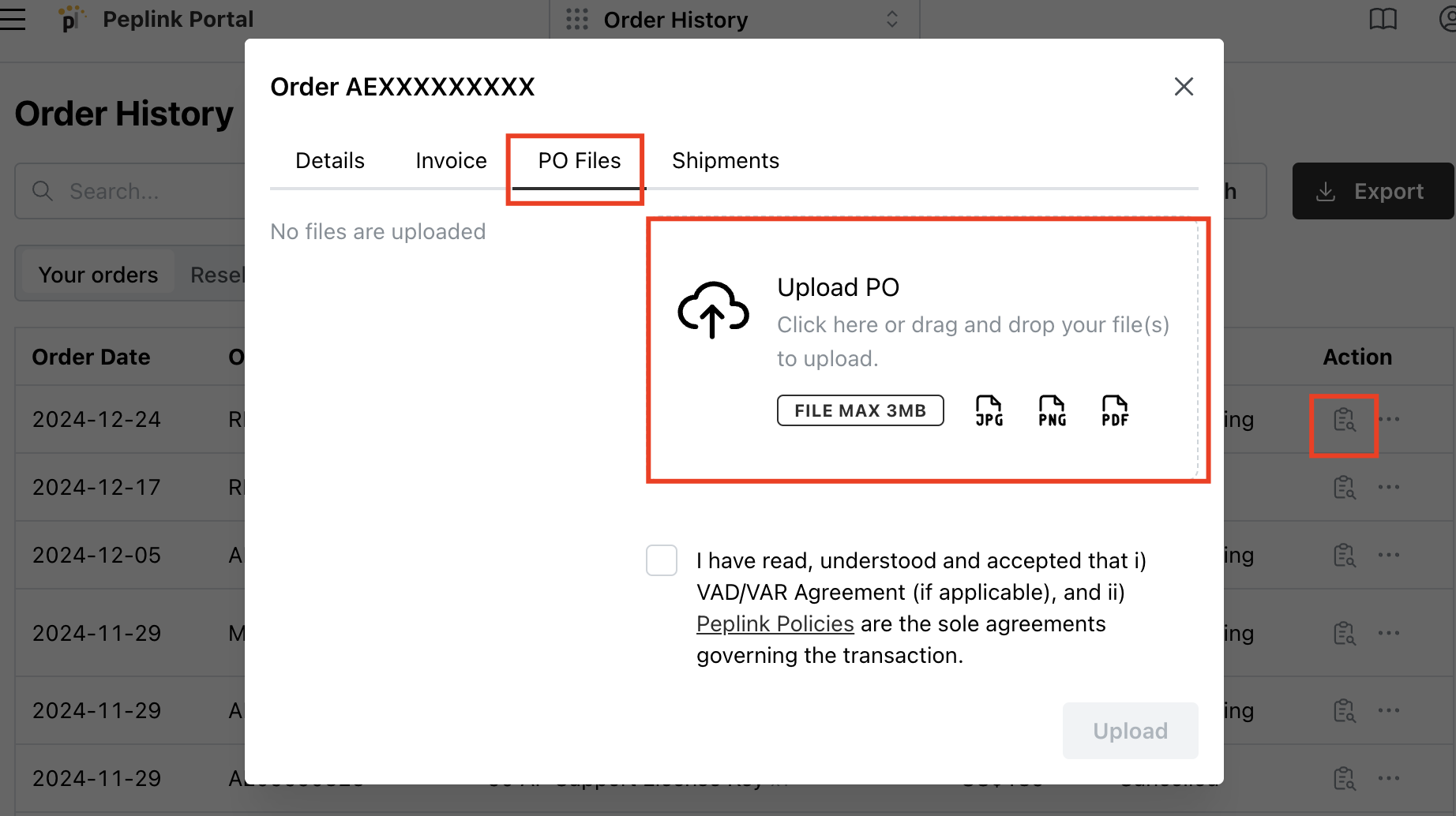
Upload your PO file following the instruction in the screen.
After the file is uploaded successfully, it will appear on the left.