

Order History
Find your orders, download proforma invoices, upload PO files and export shipment details.
Order History is every order you have placed with us, with its items, status, proforma invoice, PO files and shipments.
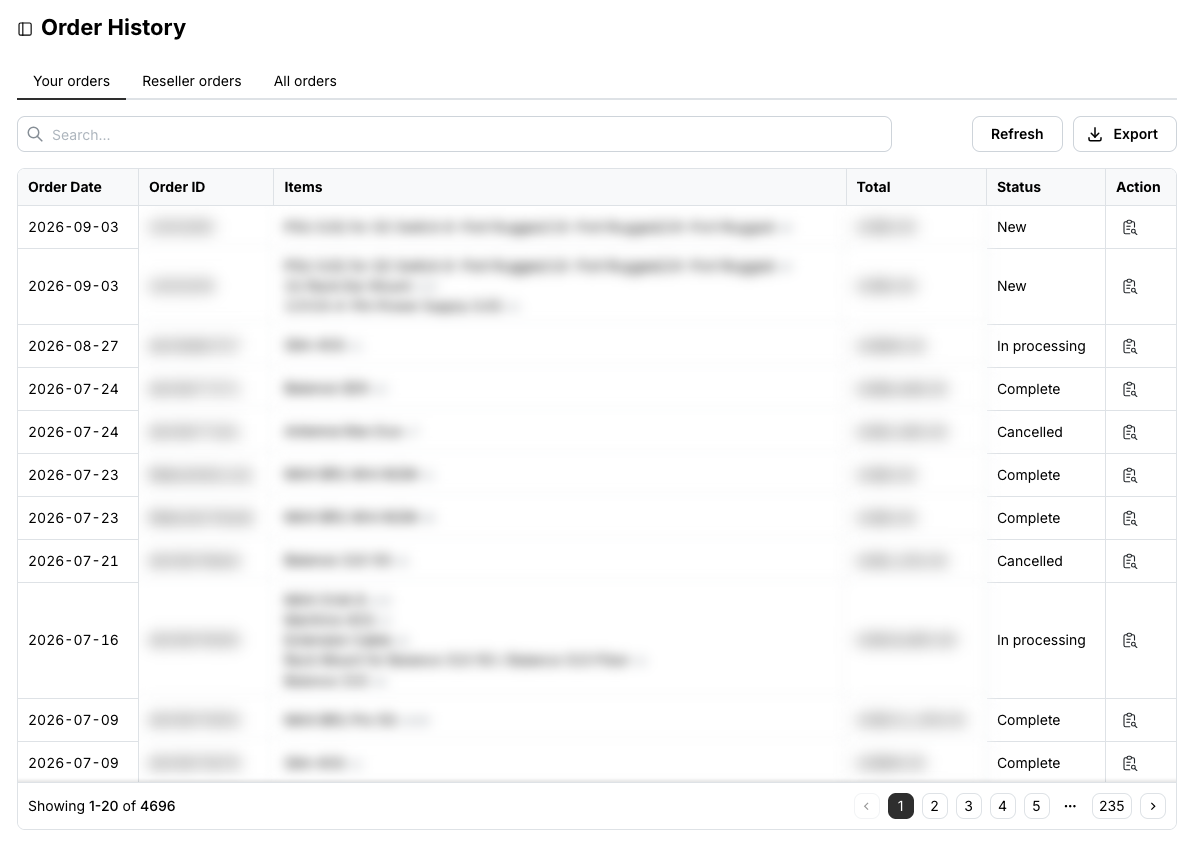
For VAD only
The Reseller orders and All orders tabs are available exclusively to VADs.
Find and export orders
Type an order ID, product or customer into the Search box. The list filters as you type.
Export downloads the search results as a CSV file. With no search, it downloads everything in the current tab.
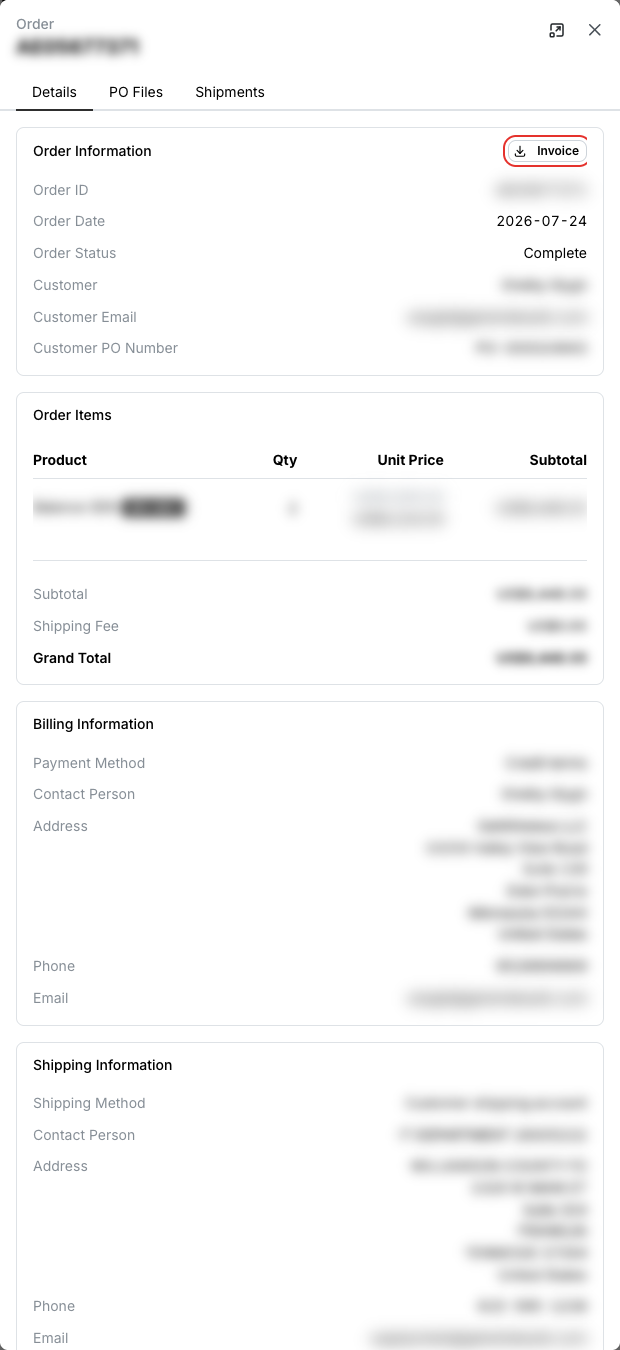
Download the proforma invoice
On the Details tab, click Invoice at the top of Order Information. The proforma invoice downloads as a PDF. The tab also lists the order items, comments, billing and shipping information.
Upload your PO files
Drop your PO onto Upload PO — JPG, PNG or PDF, up to 3 MB per file.
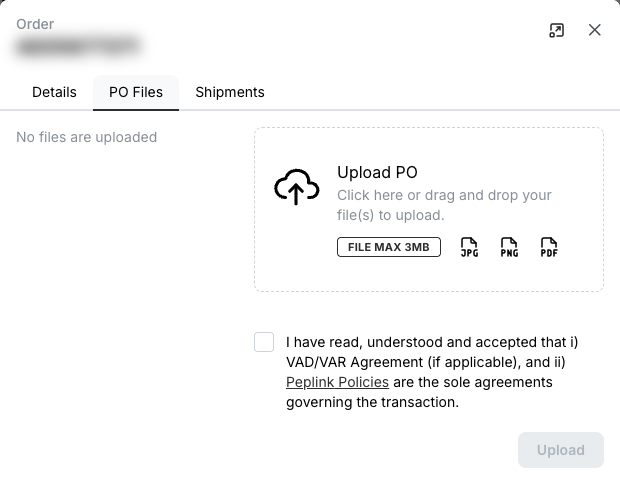
Tick the confirmation that the VAD/VAR Agreement (if applicable) and the Peplink Policies govern the transaction, then click Upload. Uploaded files are listed on the left of the tab.
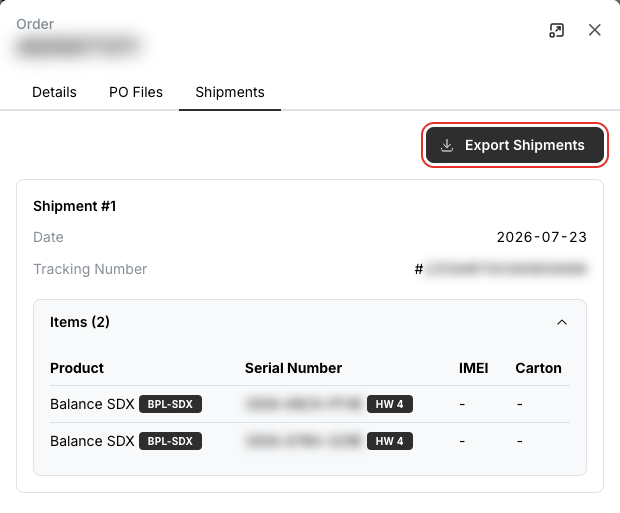
Check and export shipments
The Shipments tab lists each shipment with its date, tracking number and the products shipped down to serial number, IMEI and carton number. Export Shipments downloads them as CSV. Orders that have not shipped yet show No shipments are found.
Related
- Device Management — the devices from these orders
- API: Retrieve order, Customer PO files, recipe Update PO information for an order