

Device Management
See every device you own with its warranty, care plan and customer, filter the list and export it.
Device Management lists every device your account has bought, with its warranty, care plan, customer and owner details. Use it to check what a customer owns, when a care plan expires, and to pull the whole list into a spreadsheet.
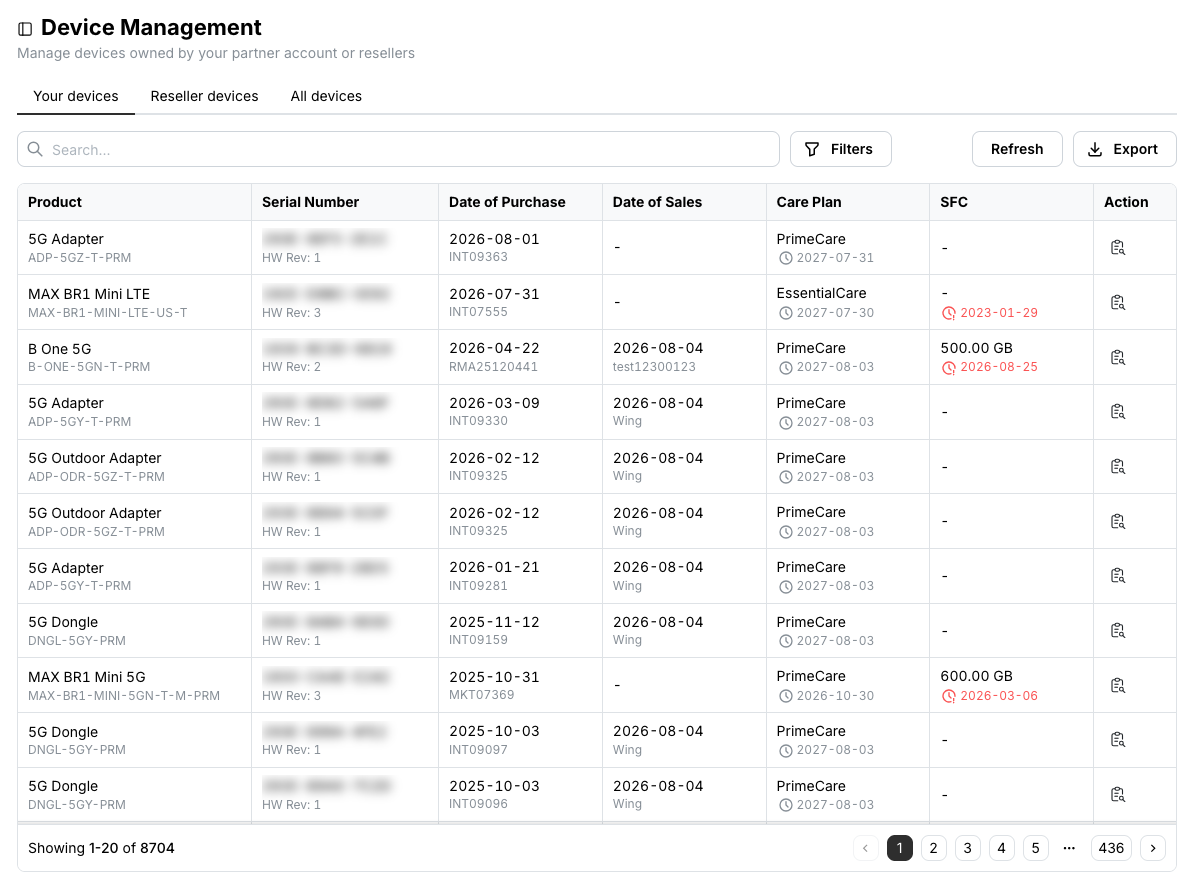
For VAD only
The Reseller devices and All devices tabs are available exclusively to VADs. Everyone else sees their own devices without tabs.
Find devices
Type a product name, SKU, serial number or order number into the Search box. The list filters as you type.
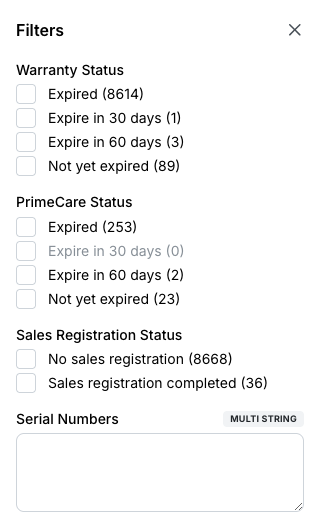
For more precise lists, click Filters and pick the warranty status, PrimeCare status or sales registration status you want, or paste a list of serial numbers.
Export device data
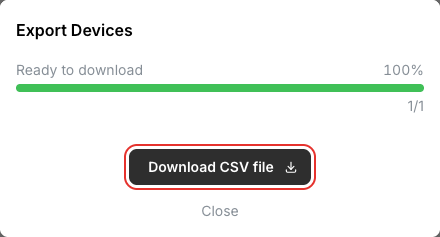
Export downloads the current list as a CSV file — the filtered or searched result, or everything in the tab when nothing is applied. Click Download CSV file when the export is ready.
See a device's details and services
Click the details icon in the Action column of a device. The Details tab shows hardware information, IMEI and ICCID for cellular devices, the order it came from, its purchase date and warranty, and the sales registration if there is one.
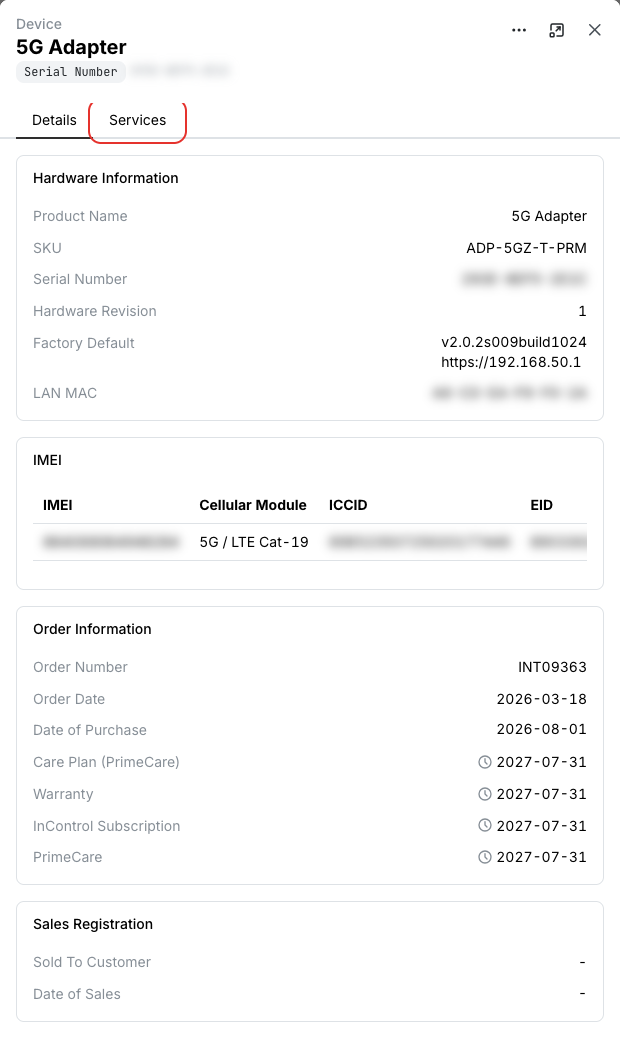
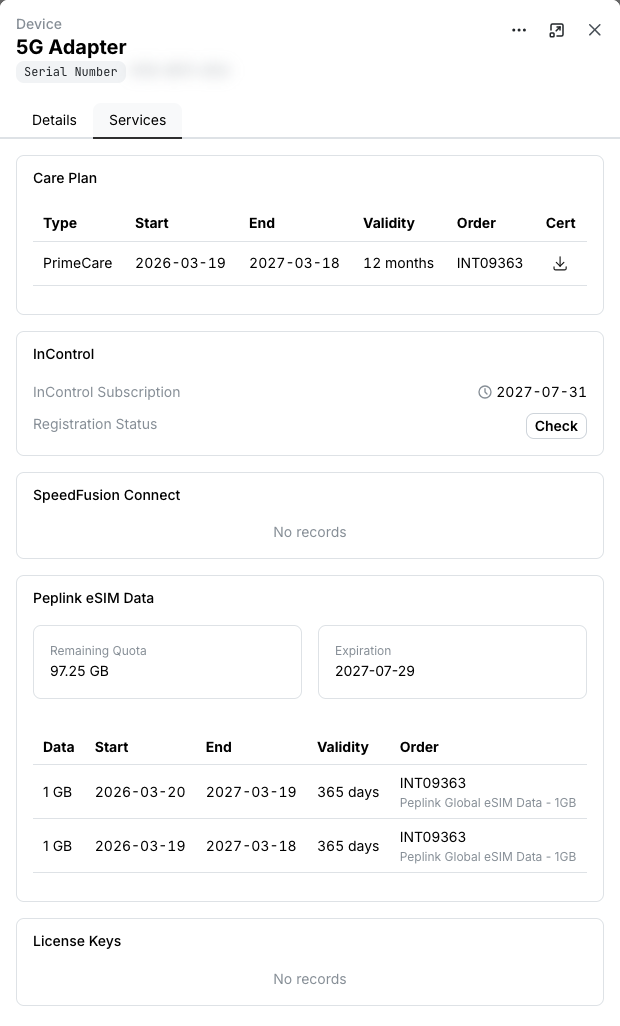
Open the Services tab for the care plan (with its certificate), the InControl subscription, SpeedFusion Connect and Peplink eSIM data attached to the device.
Related
- Ownership Assignment — pass devices to a reseller or another partner
- Sales Registration — record the customer a device was sold to
- API: Search devices, Lookup devices