

Sales Registration
Record which customer a device was sold to and when, one at a time or from a CSV file.
Sales Registration records which customer a device was sold to and when. Register every device once it is sold: a registered device's warranty runs from the date of sale; an unregistered device's warranty runs from the date it was shipped to you.
Register a sale for one customer
Stay on the For a single customer tab and enter the serial numbers, separated by commas or new lines (up to 500 per run), the Date of Sales, the Customer Name and, optionally, the Customer Email.
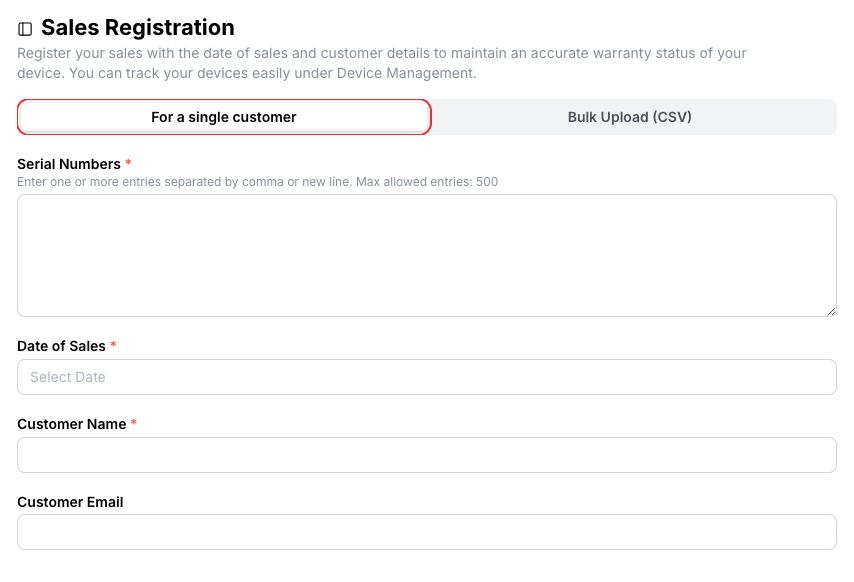
The portal validates each serial number and shows it as Valid to register, or explains why it is not.
Register many sales from a CSV file
Switch to Bulk Upload (CSV) and click Download a sample CSV file to get the template.
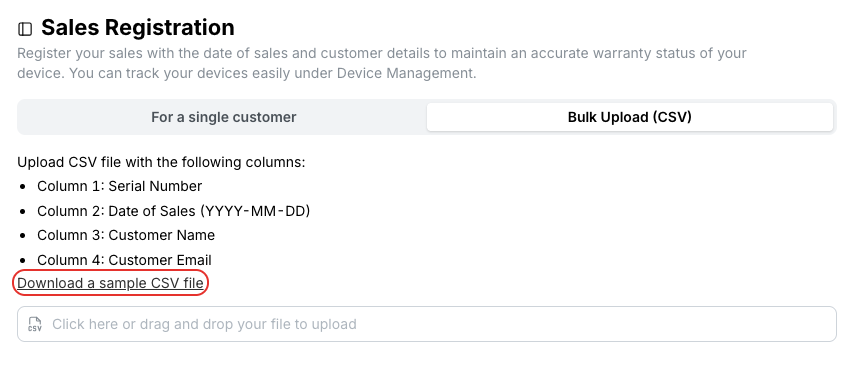
Fill in one row per device with these columns:
| Column | Content |
|---|---|
| 1 | Serial number |
| 2 | Date of sales, as YYYY-MM-DD |
| 3 | Customer name |
| 4 | Customer email |
Customer consent
If the customer is in an EU country, you must have their consent before sharing their personal information with us.
Related
- Device Management — filter by sales registration status to find what is still unregistered
- API: Sales registrations